How I keep updated in the infosec industry
Introduction
Happy 2026, two months late and with a new design for my blog! 🥳
It had been quite a while since I last posted anything on my blog, and recently I have been trying to find a functional system to best consume and process online information.
So here we are, writing a blog post that will allow me to clarify my ideas (hopefullyspoiler, it did!) and at the same time give you some inspiration and possibly replicate my setup.
At the moment, I haven’t yet found a solution that fully satisfies me. My main requirements are:
- Collecting information that I find interesting in a uniform and controlled manner
- Saving these articles so that I can read them later when I have the opportunity (possibly also offline)
- Reading articles comfortably
- Highlighting text and then synchronise it with my notes inside Obsidian
- Preferably, being able to listen to the articles when I cannot read.
- Preferably, being able to resume reading from where I left off.
- Preferably, have a feature that automatically summarises the article for me.
All this for free, without spending a penny, from any device, and without hosting anything (I know, I’m asking for quite a lot).
Strangely enough, however, I found two setups, very similar but with slightly different features, that almost completely meet my needs (only because Omnivore ceased to exist and therefore destroyed everyone’s setups).
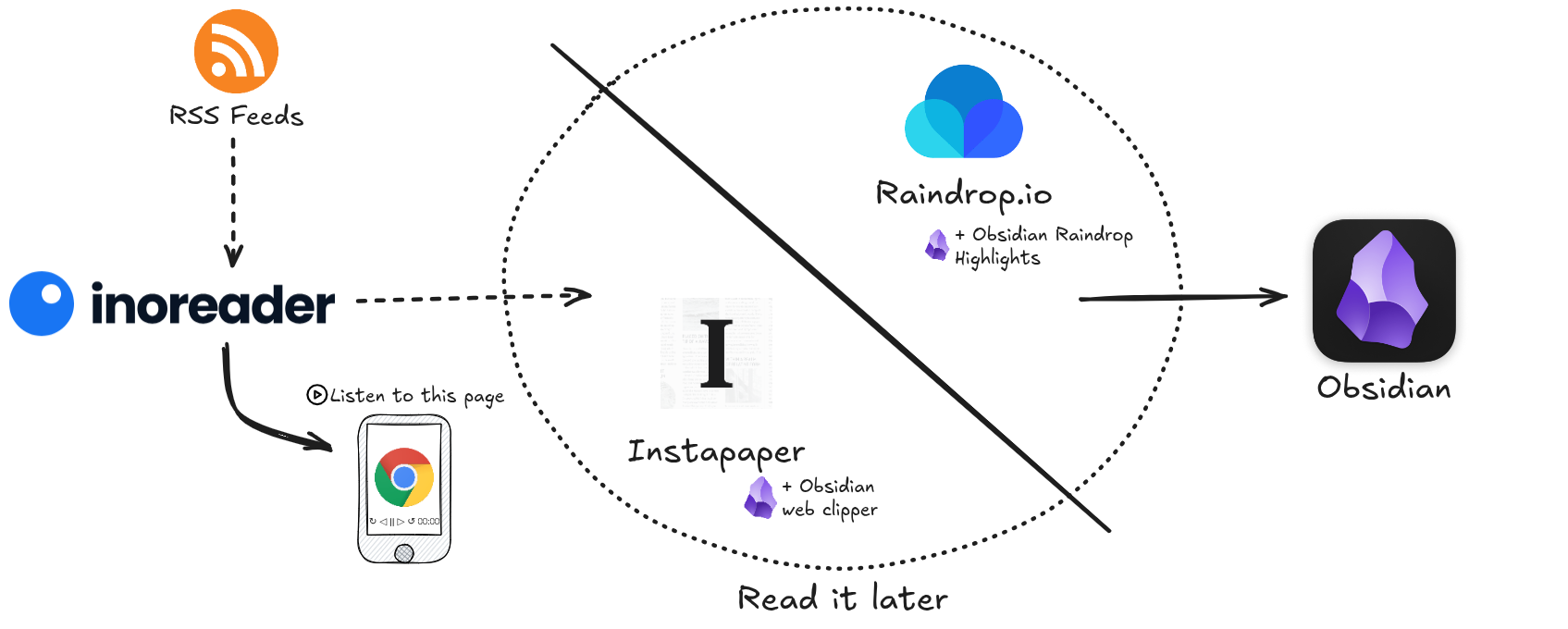 Read it later workflow graph
Both setups and concepts are insipred by:
- Chris Brooks’s Read Later Workflow
- Saeed Esmaili’s RSS-based Content Consumption Workflow (btw, I really vibe with his blog post and his “design” choices)
- noperator’s How I keep up with new content
- Daniel Prindii’s Read it later alternatives after Omnivore shutting down
- Daniel Prindii’s My Read it later and discoverability systems in 2025
Discovering new content
It’s funny – sort of – because we’re in 2026 and, from a certain point of view, it feels like we’ve gone back in time. Before, information was difficult to find because there was so little of it and it was often hidden. Now we experience the same difficulty because, instead, we are overexposed to useless, incorrect information that creates too much noise and hides the useful stuff.
RSS aggregator - Inoreader
To overcome this problem, I started using an RSS feed aggregator. Starting with the VoidSec’s RSS feed (which I still thank), over time I have curated my own personalised list of researchers, blogs, companies, newsletters, and forums that I want to stay up to date with.
Now, whenever one of them publishes a post or sends out a newsletter, it goes straight into my feed, without me having to go looking for it.
Over time, I have tried several free RSS readers. Of all of them, the one I liked the most is Inoreader, which I still use today and which is the cornerstone of my system.
 Inoreader Home page
The free plan from Inoreader is very generous (you can follow up to 150 feed) and includes some nice interesting features, which for someone who is not too demanding might already be enough.
My favourites are:
- Cross platform support and smooth experience: Both the web application and the progressive application for Android works very well. The native application for Android seems a bit outdated, but given the existence of the progressive web app, I ignore its existence.
- Very nice UI: I personally really like the user experience Inoreader offers.
- For each folder you create, you can set a different layout specific to your needs. Personally, the two I use most are List, for folders that receive many feeds per day, and Magazine, for more technical folders where I want to be able to scroll through the entire article inside a distraction-free window.
 List vs Magazine layouts
 - Speaking of the distraction-free window, I really like its layout and graphic design. Personally, I use:
font: Lora,font size: large, andline height: 1.7. - Custom share buttons: Inoreader is natively integrated with several external systems, including Instapaper and Raindrop. You can configure quick share buttons that will appear for each article, allowing you to save the article to these apps with a single click.
- Keyword highlight: You can set filters that highlight a single word in a specific colour whenever it appears anywhere. This is very useful for recognising at a glance what topics a feed is discussing.
 Inoreader reading window
- For each folder you create, you can set a different layout specific to your needs. Personally, the two I use most are List, for folders that receive many feeds per day, and Magazine, for more technical folders where I want to be able to scroll through the entire article inside a distraction-free window.
- Scroll tracking: Mark items as read when you scroll past them. This feature, combined with the sorting of articles from oldest to newest, allows me to speed up the triage phase considerably (more on this in a moment) and move my scrolling habbits on news instead of socials.
- Send to device: For those who use the native Android application instead of the progressive app, this feature can be very useful for quickly sharing articles between devices.
- Tags and Notes: Although there is a Pro version, tags and annotations (per article) are available free of charge. This is very useful for those who need to write a short summary/annotation of articles and to improve the management of key topics.
However, like any free product that has a paid version, Inoreader has paywalls that may be annoying:
- The basic version does not allow any highlighting.
- Mass operations are not permitted. This means that it is not possible to mass delete any old items that are important or saved within the tool.
- While you can listen to articles via TTS, you only have 5 listens available per month.
Triage the collected articles
For me, the triage phase is the moment when I decide which of the feeds collected by Inoreader might interest me, and therefore should be saved to read later, or discarded.
This triage activity is very quick and requires only minimal effort. I mainly do it during downtime throughout the day, such as while drinking coffee, waiting for the train, or during breaks that are not long enough to allow me to read something.
As soon as I have a few minutes, I start scrolling through the feed list, glancing at the article title, description, and any words highlighted by my filters. If something particularly catches my attention, I open the feed in Google Chrome and use the Listen to this page 1 feature to generate a podcast-style AI summary of the content. Summaries usually take just a few minutes. If the article continues to interest me, then I send it to Instapaper/Raindrop.io along with some tags, otherwise I move on.
 “Listen to this page” inside Inoreader
Read it later - Consumption of items
Here, the workflow varies depending on which tool best suits your needs and preferences. Both tools are excellent, but they have clearly defined and, in some extent, opposing purposes and directions, which make each tool unique in its own way, but which, on the other hand, introduce a lot of “friction” if used improperly.
Instapaper
Instapaper is the classic read-it-later app that captures online content, cleans it up from distractions, and syncs it to your library. It has a very clean, minimalist look.
 Instapaper GUI (Home)
It has some minor shortcomings compared to Raindrop.io, but it also has unique strengths that made me prefer it over the competition:
- The native Android application allows for completely offline use. As someone who travels a lot by train, subway, and sometimes plane, the app allows me to read my articles even in these situations. Truly fantastic stuff!
- The application keeps track of the exact point you reached while reading (or listening), allowing you to resume reading from where you left off.
- The web application (and progressive app) integrate the AI article summarisation feature free of charge in the non-paid version. I hope that in the future this feature will also be carried over to the native Android version.
- The native Android app integrates a free TTS reading feature. It’s not as good as Google Chrome’s (which I sometimes switch to because Instapaper reads code blocks, which the other tool doesn’t), but I’ve read that they’re improving it and integrating AI, so I’m confident.
The other features are the usual ones, such as creating folders, applying tags, and archiving articles you have read. However, the ability to highlight and subsequently synchronise article highlights is very limited (only 5 highlights per month). It is also not possible to upload PDFs to the app with the FREE plan.
 Instapaper reading window
On the web version, a huge limitation is the inability to perform searches! Use
CTRL+For tags wisely to overcome the issue.
Despite these limitations, it is the read-it-later application that I am currently using.
With Instapaper, I read (or listen to) every article that I have triaged and found interesting for the first time to understand what it is about in detail.
If, after a first reading, I realise that there is something I need to study in more depth on the computer or that I need to highlight and store, I save it in the Obsidian folder, from which I retrieve the articles to read a second time and study (more on this later). Finally, after an article has been processed, I move it to the Archive folder.
Raindrop.io
Raindrop.io is a modern, cross-platform, bookmark manager more than a read-it-later application. Nevertheless, it can be safely used as such. Bookmarks can be organised into various collections (which are simply folders) and can have tags.
Compared to Instapaper, it cannot be used offline. However, it is possible to search article titles, as well as search by folders, tags, highlights, dates, and other metadata. Honestly, the organisational features are superior.
 Raindrop.io home page
With regard to highlights, Raindrop.io does not impose any limits on the number of highlights.
The app feels very modern, but the reading experience is not distracting; on the contrary, it is very pleasant. For many articles (fewer than Instapaper), you can read the content in a distraction-free window similar to the one in Inorearer. For articles whose content cannot be extracted, the tool embeds the pages directly within it.
 Raindrop.io reading mode with highlights
The great thing, besides the absence of limits on highlights, is the ability to highlight and view highlights already made directly from the browser, using the official browser extension. This way, every time you browse a page that has already been highlighted (and has not changed over time), its content will be highlighted as soon as you open it.
 Highlights shown directly in the browser
Unfortunately, though, the lack of reading point tracking features and the inability to read offline make the application slightly inferior from a purely reading perspective.
Highlights - Content digestion
Reading for its own sake is fine, but it is not preparatory to study unless accompanied by some other technique for remembering and storing important points. That’s why highlighting (and reworking) content is important in my workflow.
The highlighting phase usually only applies to the second reading of an article that I need to study. After reading it the first time and forming an idea of what I consider important and what I don’t, I do a second reading and highlight what I want to memorise.
I usually do this stage on the computer, generally at the weekend or whenever I have a few hours free. I open the tool where I have saved the articles that need a second read-through, and I focus on highlighting them.
The ultimate goal is to synchronise these highlights within Obsidian. To do this, depending on the tool I used, I use a complementary support tool:
- Obsidian Web Clipper (if I used Instapaper for reading)
- Obsidian Raindrop.io Plugins (if I had already highlithed something within Raindrop.io)
Obsidian Web Clipper
Since the free version of Instapaper does not allow highlighting, I decided to use Obsidian Web Clipper to compensate.
The Obsidian Web Clipper is an official browser extension designed to bridge the gap between the internet and your personal knowledge base. The plugin uses a secure “handshake” to send the processed text directly to your local Obsidian vault, but actually does several things:
- Allows you to read articles in a distraction-free environment
- Allows you to clip the HTML content of a page and convert it entirely into markdown.
 Page content converted to markdown
 - It allows you to highlight text and images within your browser and export them to Markdown, but also see the highlights the next time you visit the page (similar to Raindrop.io)
 Web clipper reading mode with highlights
 - Manage the markdown templates used for export and integrate them with certain AI functionalities.
1
2
3
4
5
6
7
8
# {{title}}

> [!summary]+
> {{"a summary of the page. If you need to go to a new line, prepend the quote and space symbol (> ) at the start of the each line"}}
{{content}}
Tailored to my workflow, for each article in the Obsidian folder (which has therefore already been read), I open it, highlight the important parts with the tool, generate a summary with Gemini, and send everything to my Obsidian vault. Then, I archive the article within Instapaper.
Obsidian Raindrop.io Plugins
Given the native ability to highlight content in Raindrop.io, the only requirement is to have a bridge between the tool and Obsidian.
There are several types of integration available. The two most common are:
- Obsidian plugin obsidian-raindrop-highlights-plugin 2
- Obsidian plugin make-it-rain
Both plugins allow you to import your highlights into Obsidian using customisable templates.
My template is the following:
1
2
3
4
5
6
7
8
9
10
11
12
13
14
15
16
17
18
19
20
21
22
23
24
25
26
27
28
29
30
31
32
# {{title}}
{% if cover %}{% endif %}
{% if excerpt %}
> [!summary]
> {{excerpt}}
{% endif %}
{% if note %}note: {{note}}{% endif %}
{% for highlight in highlights %}
{% if highlight.color == "red" -%}
{%- set callout = "danger" -%}
{%- elif highlight.color == "blue" -%}
{%- set callout = "info" -%}
{%- elif highlight.color == "green" -%}
{%- set callout = "check" -%}
{%- elif highlight.color == "orange" -%}
{%- set callout = "warning" -%}
{%- else -%}
{%- set callout = "" -%}
{%- endif -%}
{% if callout !== "" -%}
> [!{{callout}}]
> {{highlight.text.split("\n") | join("\n>")}}
{% if highlight.note -%}> > {{highlight.note + "\n"}}{%- endif %}
{%- else -%}
{{highlight.text.split("\n") | join("\n")}}
{%- endif -%}
{%- endfor -%}
1
2
3
4
5
6
7
8
9
10
11
12
13
14
15
{% if title %}title: "{{title}}"{% endif %}
{% if excerpt %}
description: |-
  {{ excerpt | indent(2) }}
{% endif %}
{% if link %}source: {{link}}{% endif %}
{% if rindropUrl %}raindrop_url: {{rindropUrl}}{% endif %}
{% if created %}created: {{ created | date("YYYY-MM-DD") }}{% endif %}
sync-date: {{now}}
tags:
  - "_index"
{% if tags|length %}
{% for tag in tags %}
  - "{{ tag }}"{% endfor %}
{% endif %}
Refining and connecting knowledge (Obsidian)
The highlights arrive in the second memory in a format that needs to be refined (depending on the tool that captured the highlight). In the case of Web Clipper, the content is already almost completely formatted correctly; whereas in the case of Raindrop.io, chapters, formatting and code need to be refined.
I usually do the finishing touches on my notes immediately after capturing the information.
Once the notes are ready, I go through my vault looking for connections to the information I just captured (obsidian-smart-connections is the big helpers here).
Finally, I link all the notes together and back up the vault on GitHub.
-
Use the Listen to this page mode in Chrome; google.com ↩︎
-
The one I personally used ↩︎